
Google Business Profile
How to give Google Business Profile access to someone else
If you work with an agency, a freelancer or a new teammate, they need access to your Google Business Profile to reply to reviews, publish posts, add photos or correct your details. The safe way to do it is to invite their own Google account, so you never share your login and you can remove access at any time.
Here is the full process in five steps, with a screenshot for each one. The screenshots show the Sociowhiz Limited listing as an example, and your own profile looks the same.
Step 1: open Google Business Profile and select your listing
- Go to business.google.com. Your web address may show a different language code instead of ca-en.
- Sign in with the Google account that already manages the profile.
- Select the business profile you would like to give access to.
You should see a dashboard headed "Your business on Google" with your profile name, rating and review count, plus tiles like Edit profile, Read reviews, Photos, Posts and Performance.
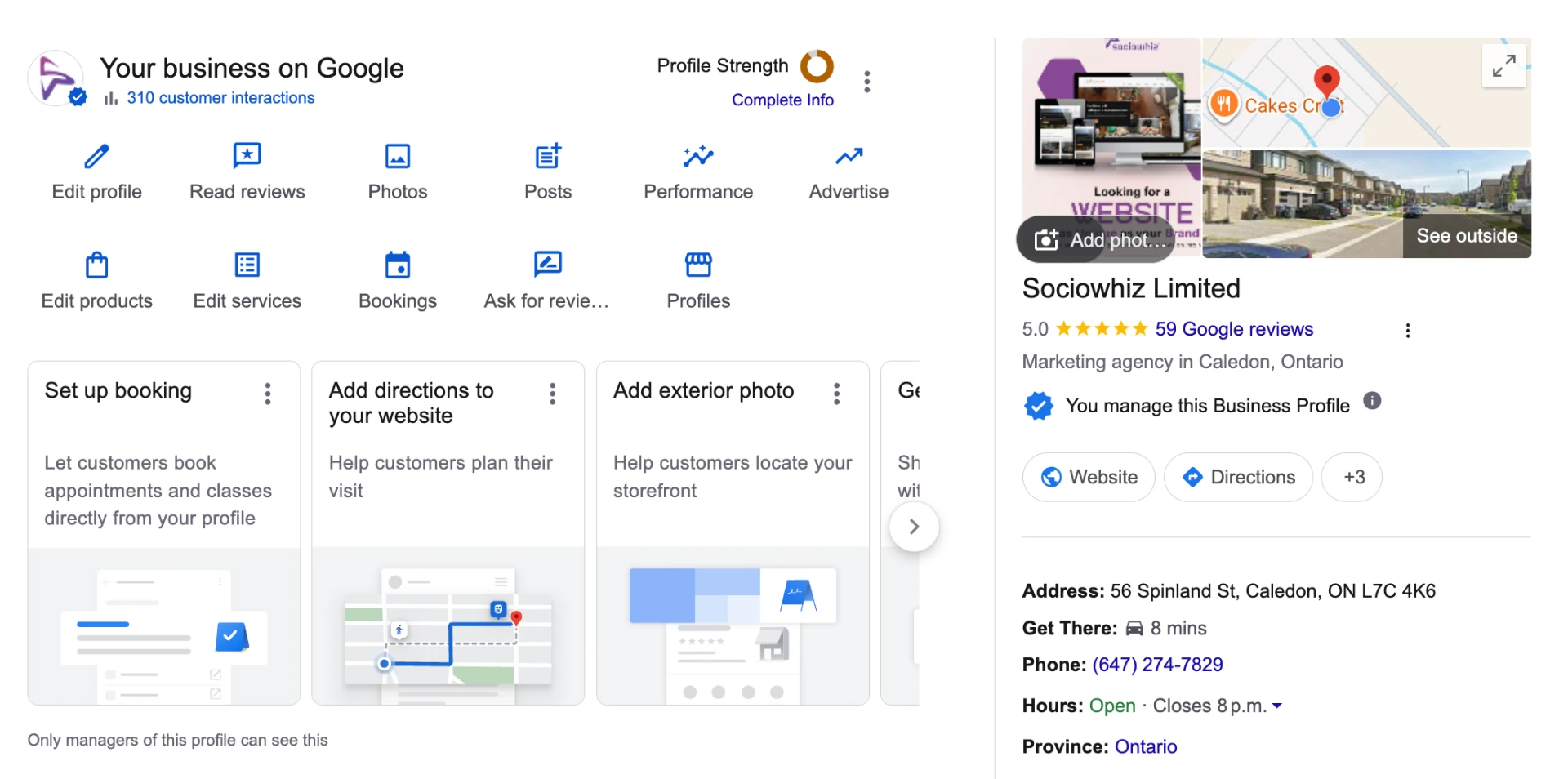
Step 2: open the three-dot menu and choose Business Profile settings
At the top of the dashboard, next to the Profile Strength ring, click the three-dot menu. A short list opens. Click Business Profile settings at the top of that list. The same menu also holds Notifications, Add a new Business Profile, Your profiles and Help & support.
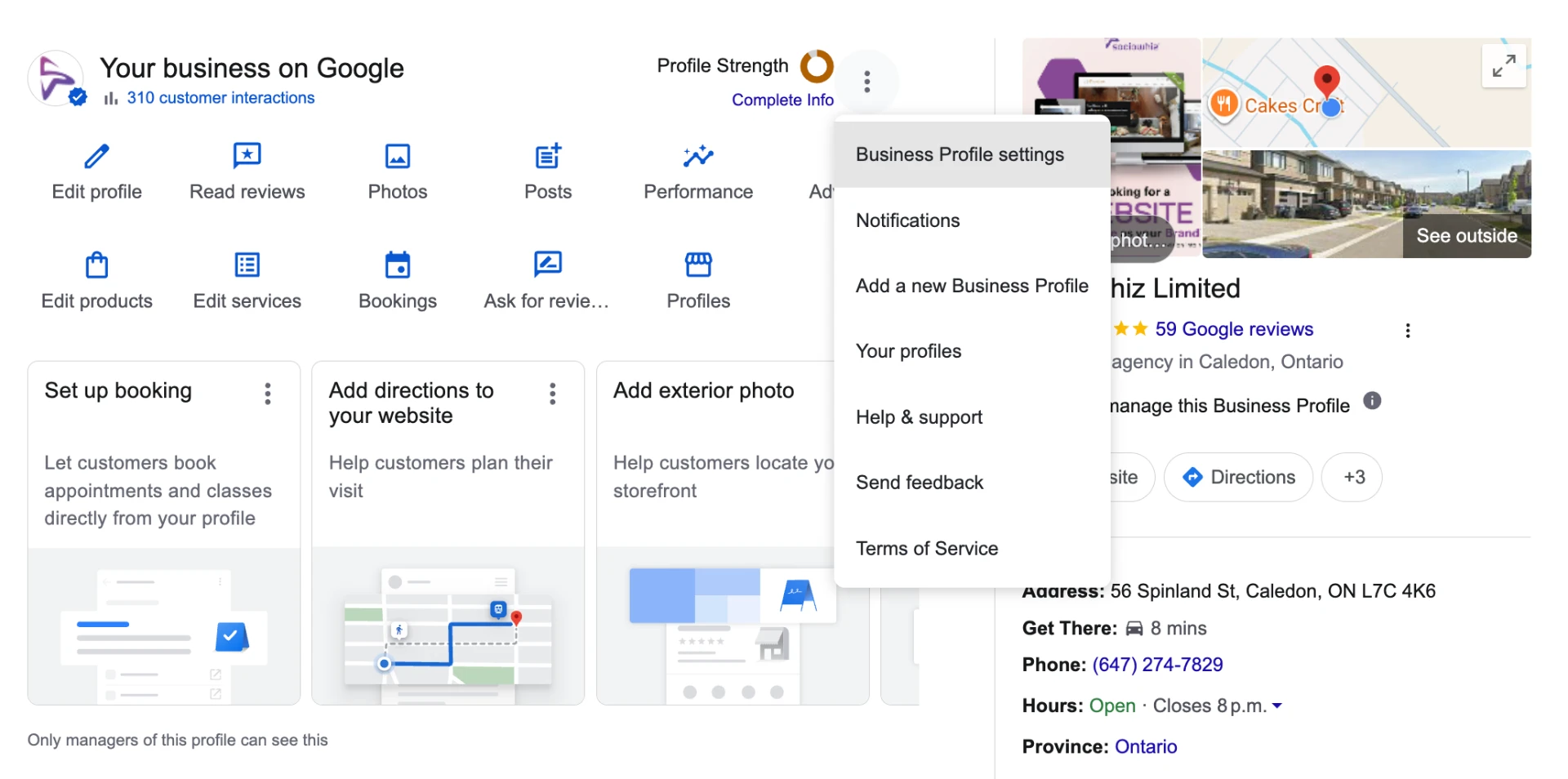
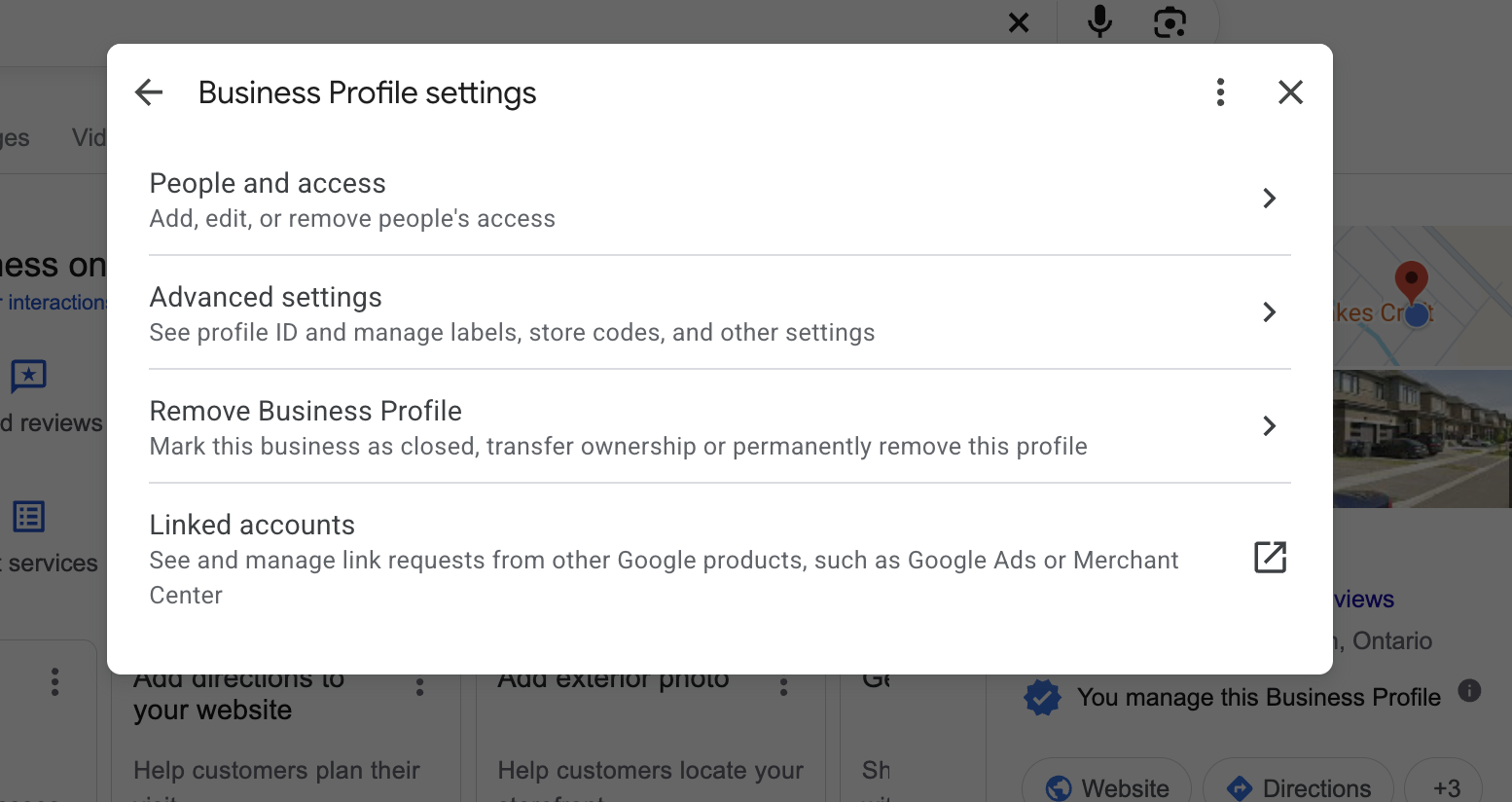
Step 3: select People and access
The Business Profile settings dialog lists four options. Click People and access, the first one, described as "Add, edit, or remove people's access". The other three are Advanced settings, where your profile ID and labels live, Remove Business Profile, where you can close, transfer or delete the listing, and Linked accounts for connections to Google Ads or Merchant Center.
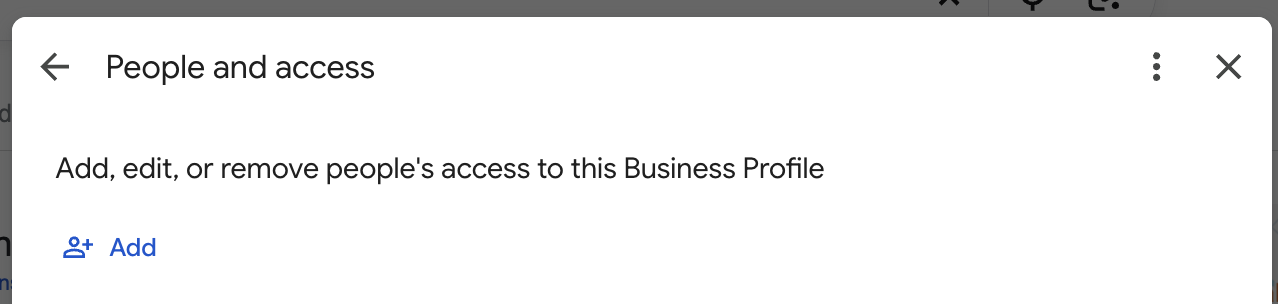
Step 4: click Add
The People and access panel shows everyone who can manage the profile today. Click the blue Add button to invite someone new.
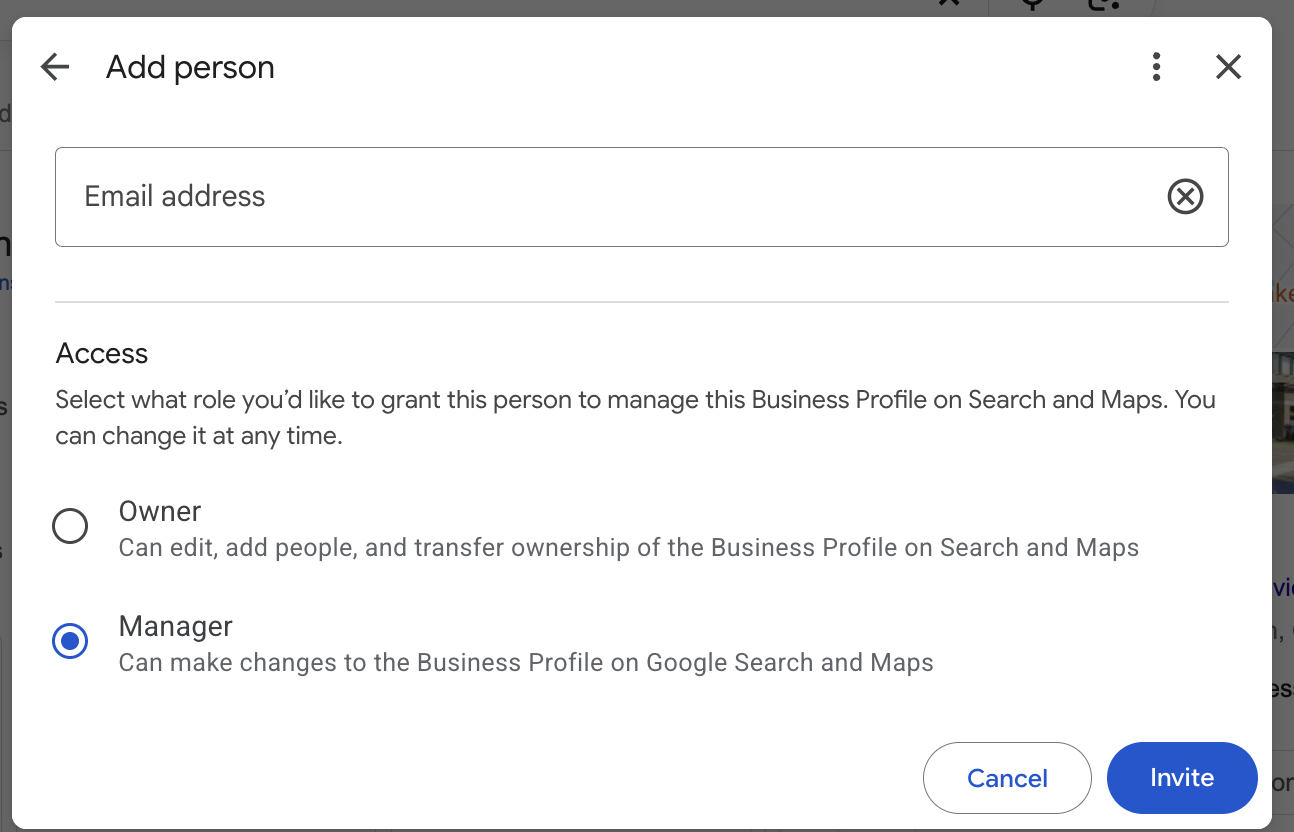
Step 5: enter the email, choose a role and click Invite
Type the person's email address. It needs to be the Google account they actually use, because that is where the invitation lands.
Under Access, pick the role that fits the job. Google describes the two options like this:
- Owner: can edit, add people, and transfer ownership of the Business Profile on Search and Maps.
- Manager: can make changes to the Business Profile on Google Search and Maps.
Most agencies and teammates only need Manager. Keep Owner for yourself and the business owner. Google notes you can change a role at any time, so there is no harm in starting smaller.
Check the email address and the role one last time, then click Invite.
What happens after you click Invite
- The person receives an email from Google at the address you entered.
- They accept the invitation, and the profile then appears in their own Google Business Profile dashboard.
- Until they accept, the invitation stays pending and they have no access.
- You can change their role or remove them later from the same People and access panel.
Good habits for managing profile access
- Invite each person's own Google account instead of sharing a login.
- Give Manager unless someone genuinely needs to own the listing.
- Check the People and access list every few months and remove anyone who no longer needs access.
- If you ever need to hand the listing over completely, ownership transfer sits under Remove Business Profile in the same settings dialog.
Working with Sociowhiz on your listing? Send us an invite using these steps and we will take it from there. Questions along the way? Just reach out to us, we are happy to help.
TLDR
Business Profile settings, People and access, Add, email address, Owner or Manager, Invite. Your teammate accepts by email and you stay in control.